
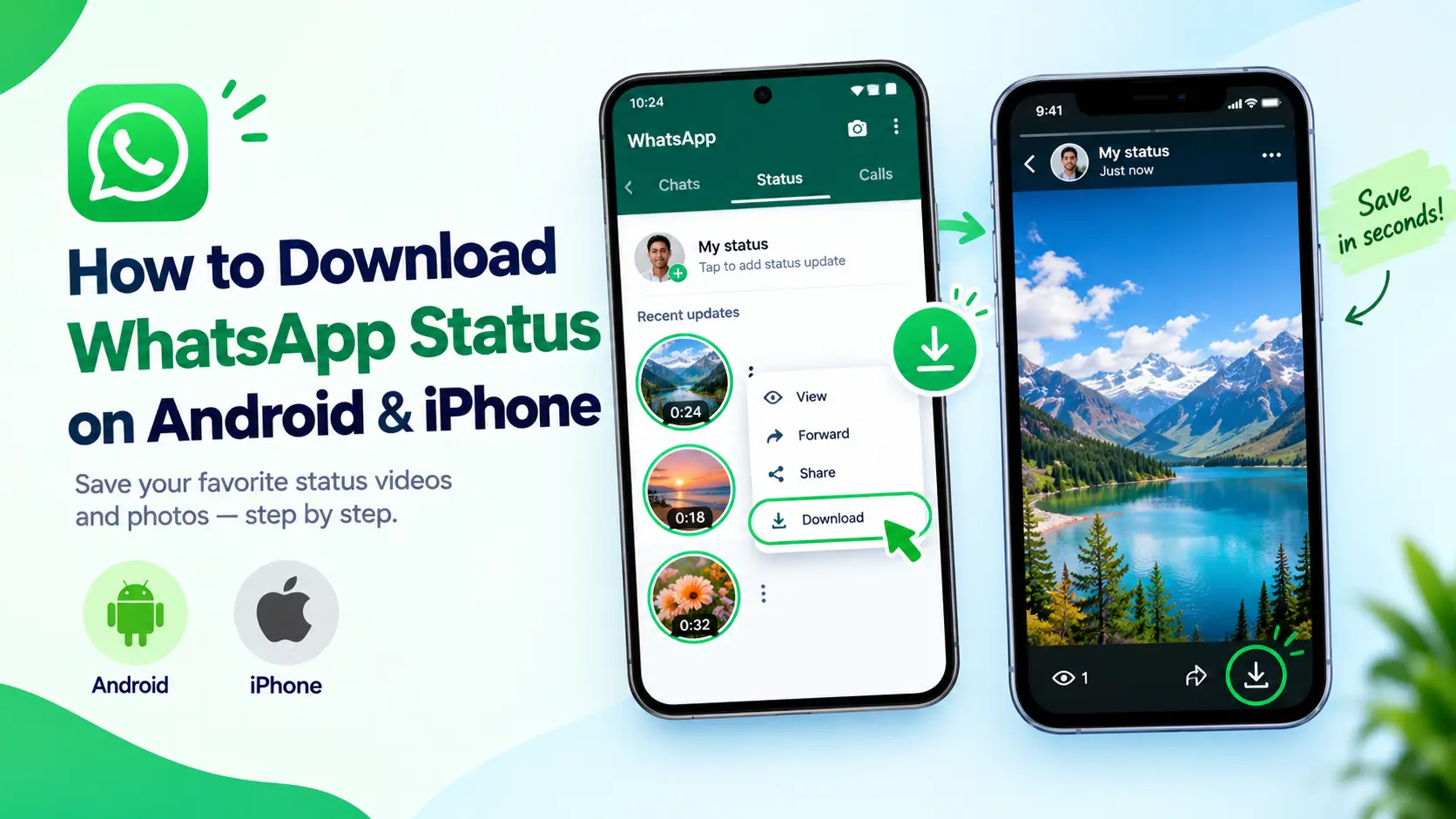
WhatsApp does not give you a download button for other people's status updates. On Android, you can usually copy a viewed status from a hidden folder with a file manager, or record it with your screen recorder. On iPhone, the options are a screenshot for photos and a screen recording for videos.
This guide shows how to download WhatsApp status photos and videos on Android and iPhone, step by step. It also covers what to do when the folder is empty, how to avoid risky status downloader apps, and why you should ask before saving or sharing someone else's post.
Can You Download WhatsApp Status?
Yes, but not with a built-in button. WhatsApp describes Status as posts that disappear after 24 hours. Its help pages cover viewing, liking and replying to other people's updates, but not downloading them, so saving one takes a workaround. Which one you use depends on your phone.
| Phone | Best method | Quality | App needed |
|---|---|---|---|
| Android 11 or newer | Copy the file from the hidden .Statuses folder | Original file | A file manager |
| Most Android phones | Screen recording | Re-recorded, slightly lower quality | Built-in recorder |
| iPhone | Screenshot (photos) or screen recording (videos) | Re-recorded | None |
| Any phone | Ask the person to send the original | Best | None |
Three rules apply to every method:
- Open the status in WhatsApp first. A status usually only appears in your phone's storage after you view it.
- You have 24 hours. After that, the status expires.
- Viewing a status can tell the poster that you saw it. More on that in the privacy section.
How to Download WhatsApp Status on Android
Android gives you more options than iPhone, because you can reach the folder where WhatsApp keeps the media you have viewed.
Method 1: Copy the file with a file manager (no extra app)
This is the cleanest way to download a WhatsApp status video or photo in its original quality, and it works on many phones running Android 11 or newer. Phone makers customize their file apps, so menu names can differ.
- Open WhatsApp and view the status you want to keep. Let it play fully if it is a video.
- Open your file manager. Google Files, Samsung My Files and Xiaomi Files are common examples.
- Turn on the setting that shows hidden files. In most file apps it appears under Settings or the three-dot menu, and may be called "Show hidden files."
- Go to Android, then media, then com.whatsapp, then WhatsApp, then media, then .Statuses. Depending on your WhatsApp version, the second media folder may appear as Media with a capital M.
- Find the photo or video. Sort by date and use the thumbnails to spot the right one.
- Select the file, choose Copy or Move, and paste it into a folder such as Pictures or Downloads.
- Open your gallery to confirm it saved.
The full path is Android/media/com.whatsapp/WhatsApp/media/.Statuses. Android 11 restricted other apps from the Android/data folders, according to Android's developer documentation, but this status folder sits under Android/media, which is a different location.
If the folder is empty or missing:
- Check that you opened the status first. The folder only holds statuses you have viewed.
- Look for an accounts subfolder. Some newer setups store statuses at Android/media/com.whatsapp/WhatsApp/accounts/ followed by a number, then media/.Statuses. One source describes this layout for Android 15 and later.
- WhatsApp Business keeps its files in a separate folder, typically named com.whatsapp.w4b, so look there instead of com.whatsapp.
- Older WhatsApp versions, and some phones on Android 10 or earlier, used WhatsApp/Media/.Statuses in the main storage folder instead.
- Some manufacturers limit access to this location. If your file manager cannot open it, use Method 2.
Method 2: Screen record the status
Most Android phones running Android 11 or later include a screen recorder, so this works when the folder does not.
- Swipe down to open Quick Settings and find the Screen record tile. If it is missing, tap the edit icon and drag it in. Samsung phones call it Screen recorder.
- Before you start, pick the option that records device audio, so the status sound is captured without room noise. Names vary by phone.
- Turn on Do Not Disturb so notifications do not appear in your video.
- Start the recording, then open the status and let it play to the end.
- Stop the recording and open the clip in your gallery to trim the extra seconds.
The result is a recording of your screen, not the original file, so quality drops a little. For a photo status, a screenshot is quicker.
Method 3: WhatsApp status downloader apps
Many apps promise one-tap downloads. Many of them work by reading the same hidden folder as the file manager method, which means they ask for broad storage access. One open-source status saver project says its app needs the all files access permission on Android 11 and later. Treat that as a warning sign for any app you install.
If you still want one, follow these rules:
- Install only from Google Play, never from a downloaded APK.
- Read the permissions list. A status saver has no reason to ask for your contacts, messages or phone calls.
- Skip any app that asks you to log in with your WhatsApp account or scan a WhatsApp Web QR code.
- Avoid modified versions of WhatsApp, such as GB WhatsApp, that claim to add a download button. WhatsApp's help center says unofficial apps break its Terms of Service and that accounts using them can be temporarily or permanently banned.
In most cases, the file manager and screen recorder methods mean you do not need one.
How to Save WhatsApp Status on iPhone
iOS keeps each app's files private to that app, so you cannot browse to a WhatsApp folder and copy a status the way you can on Android. That leaves two built-in options.
Save a photo status with a screenshot
- Open the status in WhatsApp.
- Take a screenshot. On iPhones with Face ID, press the side button and the volume up button together. On iPhones with a Home button, press the Home button and the side button together.
- Open Photos and crop out the status bar and WhatsApp buttons.
Save a video status with screen recording
- Open Control Center. On iPhones with Face ID, swipe down from the top-right corner. On iPhones with a Home button, swipe up from the bottom edge.
- If you do not see the Screen Recording button, add it. On recent iOS versions you can add controls from inside Control Center, and older versions use Settings, then Control Center.
- Tap the record button and wait for the three-second countdown. Apple's guide says the clip is saved to Photos under Screen Recordings.
- Open WhatsApp, view the status and let it play fully.
- Stop the recording from the red indicator at the top of the screen or from Control Center.
- Open the clip in Photos and trim the start and end.
Keep your volume up while recording. If the clip comes out silent, record again with the microphone on, which you turn on by pressing and holding the record button. The microphone also picks up room noise, so play the status somewhere quiet.
Apple notes that some apps block recording. If WhatsApp ever blocks it on your phone, the next best option is to ask the person to send you the original.
Save a WhatsApp Status Without Installing an App
You can do this on any phone:
- Ask the person who posted it to send you the photo or video directly. It gives you the original file in full quality.
- On Android, copy the file from the .Statuses folder with the file manager you already have.
- Use the built-in screen recorder or screenshot on Android or iPhone.
Common Problems and Fixes
- The .Statuses folder is empty. You have not opened any statuses recently, or they have expired. Open the status in WhatsApp, then refresh the folder.
- I cannot see the .Statuses folder. Turn on hidden files in your file manager. The folder name starts with a dot, which hides it by default.
- The Android/media folder will not open. Try your phone's other file app, or use screen recording.
- The video has no sound. Turn on audio recording before you start. On Android, pick device audio in the recorder options. On iPhone, keep the volume up, or try the microphone option if the clip is still silent.
- Notifications appear in my recording. Turn on Do Not Disturb before you record.
- The saved file is blurry. Screen recordings lose some quality. Copy the original from the folder on Android, or ask the sender.
- The status disappeared before I saved it. Statuses expire after 24 hours, and the poster can delete one early.
- My phone storage is filling up. Saved clips add up. Our guide on freeing up WhatsApp storage shows how to clear large files.
Privacy, Consent and Security
A status is a personal post that someone shared with their contacts. Saving it for yourself is a small thing, but sharing it can cross a line.
- Ask first. If you want to keep a friend's photo or reshare a video, message them and ask.
- Do not repost without permission. A status may include other people, and photos and videos can be protected by copyright.
- Know that your view may be visible. WhatsApp says that if you turn read receipts off, you can no longer see who viewed your own statuses. You also cannot see whether a contact with read receipts off has viewed yours. Decide which trade-off you prefer.
- Keep your account safe. Never share your verification code, and avoid downloader tools that ask for WhatsApp login details.
- Protect your own status. WhatsApp lets you limit who can see your status to selected contacts, and a status can be reshared if you mention someone. Review your status privacy settings if that worries you.
To save your own status, keep the original photo or video in your gallery before you post it. WhatsApp also has a status archive for your own posts.
Frequently Asked Questions
1. How do I download WhatsApp status on Android? View the status in WhatsApp, then open your file manager with hidden files turned on. Go to Android/media/com.whatsapp/WhatsApp/media/.Statuses and copy the file to another folder. If the folder is blocked, use the screen recorder instead.
2. Can I download WhatsApp status on iPhone? Not directly. iPhone has no download option and no access to WhatsApp's files. Use a screenshot for photos and the built-in screen recording for videos, or ask the person to send you the original.
3. Does WhatsApp notify someone if I save their status? WhatsApp's help pages describe view receipts but do not describe any alert for screenshots or copied files. The poster can see that you viewed the status unless read receipts are off.
4. Where are WhatsApp statuses stored on Android? On Android 11 and newer, viewed statuses are usually in Android/media/com.whatsapp/WhatsApp/media/.Statuses, a hidden folder. Some setups use an accounts subfolder. Older WhatsApp versions used WhatsApp/Media/.Statuses in the main storage folder.
5. Are WhatsApp status downloader apps safe? It depends on the app. Many request broad storage access, and some are risky. Install only from Google Play, read the permissions, and never give an app your WhatsApp login. You can avoid these apps with a file manager or screen recording.
6. How long do I have to save a WhatsApp status? Status updates disappear after 24 hours, and the poster can delete them sooner. Save the status while it is still live.
7. Can I download a WhatsApp status without opening it? Usually not. A status normally appears in your phone's storage only after you open it in WhatsApp, so view it first and then save it.
Status behavior comes from WhatsApp's help pages on status, viewing and replying to status and unsupported apps. Android storage limits come from Android's storage documentation, and the iPhone steps come from Apple's guide to recording your screen. Menu names and folder locations vary by phone and software version.