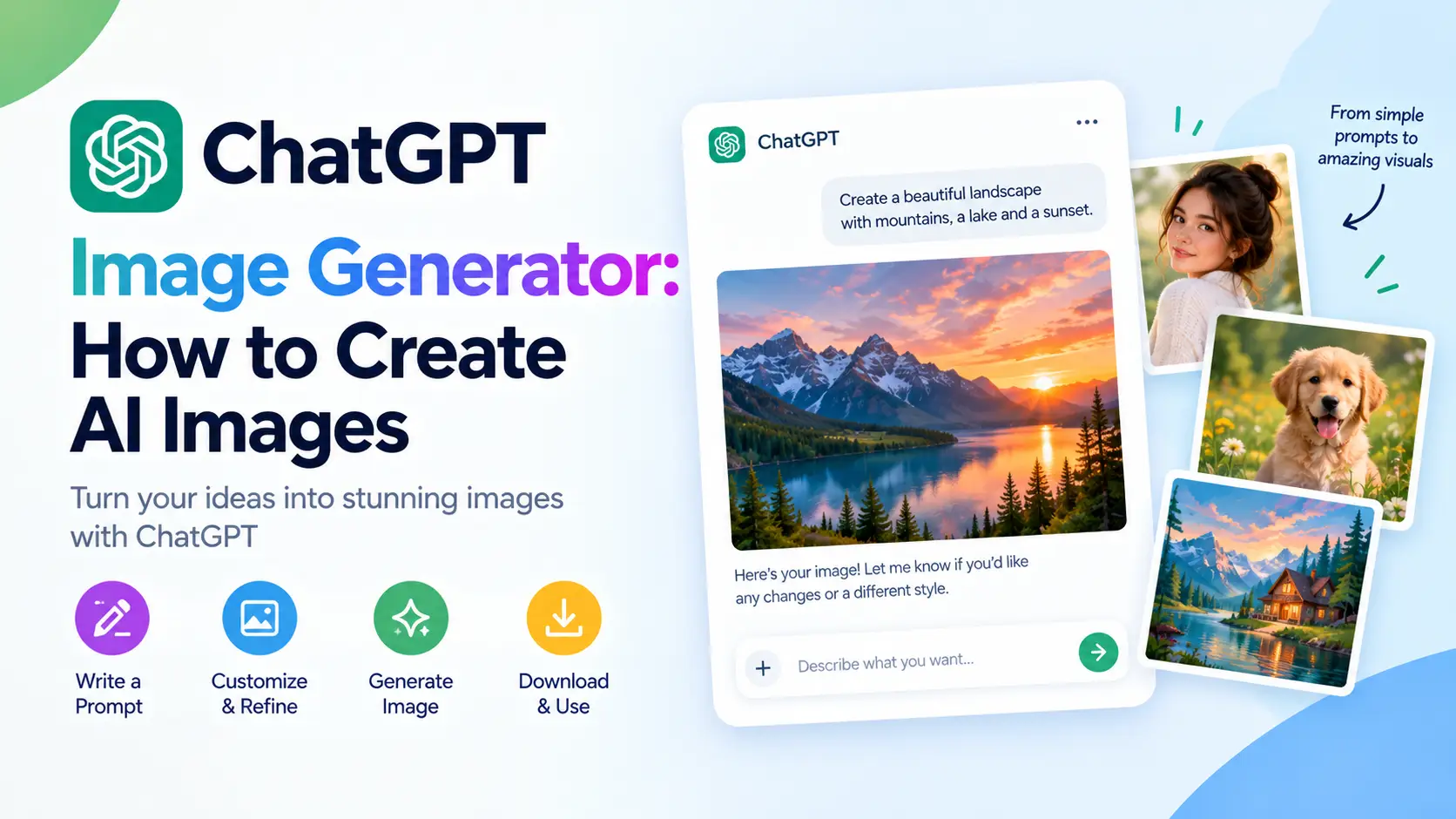
The ChatGPT image generator creates new images from a written description, and it can also edit a photo you upload. You type what you want in a chat, ChatGPT returns an image, and you refine it with follow-up messages. It works on the free plan with limits, and paid plans raise those limits.
This guide shows how to use the ChatGPT AI image generator step by step, with copy-and-paste prompts for photos, portraits, social posts, products, logos, anime and marketing visuals. You will also find what the free and paid plans include, where the tool struggles and which alternatives are worth a look.
What Is the ChatGPT Image Generator?
The ChatGPT image generator is the image feature built into ChatGPT, which OpenAI calls ChatGPT Images. You do not need a separate app or a special prompt format. You describe the picture in plain English, and ChatGPT draws it.
It differs from older image tools in two ways:
- It is conversational. You can say "make the background darker" or "try a wider shot" and ChatGPT adjusts the image instead of starting over.
- It handles two jobs. You can generate a brand-new image from text, or you can upload an existing picture and ask for changes.
Older guides may still call this tool DALL·E. OpenAI has moved image creation to ChatGPT Images and its release notes point users there, so advice written around DALL·E can be out of date. OpenAI's release notes list an update called ChatGPT Images 2.5 in September 2026, which OpenAI says follows editing instructions more reliably across longer conversations.
Key Features and Capabilities
OpenAI's help pages and announcements describe these core features:
- Text-to-image creation from a plain-language description.
- Editing of images you create or upload, either by describing the change in chat or by selecting part of the image and describing what to change.
- Any aspect ratio. OpenAI's help center says you can generate images in any aspect ratio, and the simplest way is to state it in your prompt.
- Templates for common formats such as posters and logos, found under Images in the sidebar.
- A saved library, so your images stay under Images on web and mobile.
- Provenance signals that mark images as AI-generated, covered in the copyright section below.
OpenAI also describes a sketch tool that lets you draw a rough reference. Features roll out gradually and differ by plan, so check what appears in your own account.
Generating a New Image vs Editing an Uploaded Image
These two tasks look similar but need different prompts.
| Generating a new image | Editing an uploaded image | |
|---|---|---|
| Starting point | A text description | Your own photo or a generated image |
| Main goal | Invent a scene, style or subject | Change something while keeping the rest |
| What your prompt needs | Subject, setting, style, mood, format | The change, plus what must stay the same |
| Biggest risk | Missing or garbled details | Faces, text or layout drifting |
When you generate, you are describing everything. When you edit, you are mostly describing limits. That is why edit prompts include lines like "keep the face and clothing unchanged."
How to Generate Images in ChatGPT, Step by Step
- Open ChatGPT on the web or in the mobile app and sign in.
- Start a new chat. You can ask for an image right in the conversation, or open Images in the sidebar and describe what you want there.
- Write your prompt. Name the subject, the setting, the style and the format. For example: "A cozy reading nook by a rainy window, warm lamp light, watercolor illustration, landscape."
- Add the aspect ratio if it matters, such as square for a profile picture or 16:9 for a blog cover.
- Review the result. If it is close, reply with one small change, such as "make the lamp warmer and add a sleeping cat."
- Save or download the image you like. It also stays in your Images library.
If the first image misses, resist rewriting everything. Change one thing at a time so you can see what helped.
How to Edit an Existing Photo With ChatGPT
- Upload your photo using the + icon, or drag it into the chat. OpenAI's image inputs FAQ lists PNG, JPEG and non-animated GIF as supported formats.
- Describe the change and list what must stay the same.
- Optionally, select the part of the image you want to change and describe the edit. OpenAI warns that selections are not always precise, so changes can spill outside the area you marked.
- Check the result at full size, especially faces, hands and any text.
- Ask for small corrections instead of starting over.
Example: "Replace the background with a softly blurred cafe. Keep the person's face, hair, clothing and pose exactly the same." Our guide to ChatGPT photo editing prompts has a full set of edit prompts for portraits, headshots and lighting fixes. This article focuses on generating images.
Best ChatGPT Image Prompts
Copy any prompt below and replace the details in brackets. These are starting points. Results vary between runs, so expect to adjust.
Photorealistic images
A photorealistic photo of [a ceramic coffee mug on a wooden table] in soft morning window light, shallow depth of field, natural colors, no text, no watermark. Landscape format.
This should give you a magazine-style still life. OpenAI's guidance says camera terms work as style cues, not exact simulations, so describe the light and materials too.
A photorealistic street scene in [Lisbon] at golden hour, people walking, warm light on old buildings, candid documentary style. 3:2 landscape.
Swap the city, time of day and mood to build a travel series.
Portraits and headshots
A professional headshot of [a woman in her thirties with short dark hair], navy blazer, soft studio lighting, neutral gray background, natural skin texture, friendly expression. Square format.
This creates a fictional person, which suits website mockups and stock-style images. If you want your own face, upload your photo and use an edit prompt instead, since a text description will not reproduce your exact face.
A cinematic portrait of [an elderly fisherman], weathered face, overcast light, muted colors, 85mm lens look, shallow depth of field.
It leans editorial. Change the subject and weather for variations.
Instagram and social media
A clean flat-lay photo for Instagram: [a notebook, a coffee cup and dried flowers] on a cream linen background, soft natural light, pastel tones, space at the top for a caption. Portrait 4:5.
Leaving space for text makes the image easier to use. Replace the objects with your own theme.
A bright, minimalist quote background in [sage green and cream], soft paper texture, empty center for text. Square format.
Generate the background and add your words in a design tool, since text inside AI images can come out wrong.
Product photography
A product photo of [a matte black water bottle] on a white seamless background with a soft shadow, studio lighting, centered, no text or logos. Square.
Expect a catalog-style shot. Add a surface or props for a lifestyle version.
A lifestyle product scene: [a skincare bottle] on a bathroom shelf next to a folded towel and a small plant, morning light, calm and clean, realistic.
Good for social ads. Name every prop, or the model will add its own.
Logos and illustrations
A simple, modern logo concept for [a bakery called "Maple & Rye"], a minimal wheat icon, two colors, flat vector style, white background. No extra text.
Treat the output as a concept, because an AI logo may not give you clean, editable vector files.
A flat vector illustration of [a person working on a laptop in a plant-filled room], limited palette of teal, orange and cream, clean shapes, no outlines.
Useful for blog posts and slides. Name your brand colors to match your site.
Anime and artistic styles
An anime-style illustration of [a girl standing on a rooftop at sunset], big expressive eyes, soft cel shading, detailed clouds, warm color palette. Landscape.
Describe the mood and palette too, since style names alone can be vague.
An oil painting of [a quiet harbor at dawn] with visible brush strokes, rich textures and soft light, in the style of impressionist landscapes.
Naming a broad art movement is safer than copying a living artist. Try "watercolor," "ukiyo-e" or "art deco" for variety.
Marketing visuals and blog covers
A blog cover image about [remote work productivity]: a tidy desk with a laptop and plant, bright natural light, modern flat illustration, calm blue and white palette, empty space on the left for a headline. 16:9.
Designing for a headline makes the image more practical. Replace the topic and colors.
A bold promotional banner for [a summer sale]: sunny beach colors, abstract shapes, energetic mood, large empty area for text. Wide landscape.
Add the real text in a design tool for sharp lettering.
Tips for Writing Better Image Prompts
Most of these habits come from OpenAI's own image prompting guide:
- Name the use first. "A blog cover" or "a product photo" gives the model a goal.
- Describe what is visible. Mention materials, lighting, colors and composition, not only mood words.
- Say it is a photo if you want a photo. Otherwise you may get an illustration.
- Put required text in quotes, describe where it goes and ask for no extra text. Then check the spelling.
- Spell unusual brand names letter by letter if they come out wrong.
- Ask for exclusions, such as "no watermark" or "no logos."
- Request the aspect ratio you need before you generate.
- Change one thing at a time when refining, and restate what should stay the same.
ChatGPT Image Generator Free vs Paid
| Plan | Image creation |
|---|---|
| Free | Limited |
| Go | More image creation than Free |
| Plus | More complex and accurate image creation than Go, according to OpenAI's plan page |
| Pro | Unlimited and faster image creation, subject to abuse guardrails |
A few points about the limits:
- OpenAI does not publish a fixed daily image count for the free plan. When you hit the limit, ChatGPT shows when it resets.
- The Free Tier FAQ says image creation can have stricter limits than paid plans.
- Prices and plan details vary by country, and OpenAI changes them often. Check the pricing page for your region.
- Free users still get a saved library under Images.
- According to OpenAI's Free Tier FAQ, the ad-free version of the free plan has lower limits and drops some tools, including image generation.
Our comparison of Perplexity vs ChatGPT covers the ChatGPT plans in more detail.
Advantages and Limitations
Advantages
- You edit by conversation, so no design skills are needed.
- The same chat handles generating, editing and refining.
- It is available on a free plan with limits.
- Templates and aspect ratios cover common formats.
Limitations and common problems
- Text can still come out wrong, especially small or dense lettering. Always proofread.
- Faces and details can drift across repeated edits.
- Historical scenes, diagrams and infographics need fact-checking, because OpenAI's guidance warns that labels and relationships can be wrong.
- Results change from run to run, so the same prompt can look different.
- A checkerboard pattern drawn into an image is not a real transparent background. If you need transparency, check the file.
- Free limits can interrupt a project.
Quick fixes
- Wrong text: remove it from the prompt and add it in Canva or a similar tool.
- Wrong style: describe the medium, lighting and palette in more detail.
- Too many changes: restart from the last good image and ask for one fix.
- Hit a limit: wait for the reset or consider a paid plan.
Copyright, Commercial Use and AI Labels
OpenAI's Terms of Use say that, as far as the law allows, you keep your inputs and own the outputs, and OpenAI assigns you any rights it has in them. You are still responsible for how you use an image. Copyright rules for AI-generated images vary by country and are still developing, so get legal advice before building a business on one image, such as a logo.
Images from ChatGPT carry C2PA Content Credentials and SynthID watermarks, according to OpenAI. Editing, converting or sharing an image can strip the metadata, and OpenAI says these signals do not replace a visible AI label. If a client, platform or publication requires disclosure, label AI images clearly. Do not use the tool to imitate real people or copy brands.
ChatGPT Image Generator Alternatives
ChatGPT is a good all-round choice, but other tools do some things better. Our full roundup of the best AI image generators compares 15 tools, including their prices and licensing. In brief:
- Midjourney is known for stylized, artistic images.
- Ideogram is known for readable text inside images.
- Adobe Firefly suits people who already work in Adobe tools.
- Canva combines image generation with templates and layouts. See our comparison of Canva, Midjourney and Leonardo.
- Google's Gemini and Microsoft Designer also generate images.
Pick based on the job. For quick drafts and edits inside a chat, ChatGPT is convenient. For heavy design work, a dedicated tool may fit better.
Where to Start
Pick the prompt above that matches your next project, swap in your own details and save the wording that works. A small library of prompts that worked for you will make the ChatGPT image generator faster every time you use it.
Frequently Asked Questions
1. Can ChatGPT generate images? Yes. ChatGPT can create images from a text description and edit images you upload. You can ask for an image in a normal chat or open Images in the sidebar. Features and limits depend on your plan.
2. Is the ChatGPT image generator free? Partly. The free plan includes image creation, but OpenAI describes it as limited and does not publish a fixed daily number. Paid plans raise the limits. Check the in-app message for when your limit resets.
3. How do I generate an image in ChatGPT? Open ChatGPT, describe the image you want, and include the style and format. Then refine the result with short follow-up messages. You can also start from a template under Images in the sidebar.
4. Is ChatGPT image generation the same as DALL·E? Not anymore. OpenAI now offers image creation as ChatGPT Images and has pointed users there from the older DALL·E option. Articles that describe DALL·E as the current tool are likely out of date.
5. Can ChatGPT edit my own photos? Yes. Upload a photo with the + icon, describe the change and list what must stay the same. OpenAI notes that selections are not always precise, so check the full image afterward.
6. Can I use ChatGPT images commercially? OpenAI's Terms of Use say you own the outputs as far as the law allows, and you are responsible for how you use them. Copyright rules vary by country, so get legal advice for important uses such as logos.
7. Why does ChatGPT misspell text in images? Image models can still struggle with small or dense text. Put the exact wording in quotes, describe where it goes, ask for no extra text and proofread the result. For perfect lettering, add text in a design tool.
8. What can I use instead of ChatGPT to make AI images? Midjourney, Ideogram, Adobe Firefly, Canva, Gemini and Microsoft Designer are common options. Which is best depends on your budget, style and whether you need readable text or commercial licensing.
Features and policies in this article come from OpenAI's Images in ChatGPT help page, its image inputs FAQ, its Free Tier FAQ, its image prompting guide, its provenance signals page and its Terms of Use, as of October 2026.